Integrating ApeRAG with Dify
ApeRAG is a production-grade RAG platform with multimodal indexing, AI agents, MCP support, and scalable K8s deployment capabilities. It helps users build complex AI applications with hybrid retrieval, multimodal document processing, and enterprise-grade management.
Core Features:
- Unlike "standard" RAG, ApeRAG implements Graph-RAG, building knowledge graphs to understand deep relationships between data elements
- Integrates MinerU, designed for complex documents, scientific papers, and financial reports, accurately extracting tables, formulas, and engineering diagrams
- Full Kubernetes support with built-in high availability, scalability, and enterprise-grade management
Video Demo
Step 1: Prepare Knowledge Base
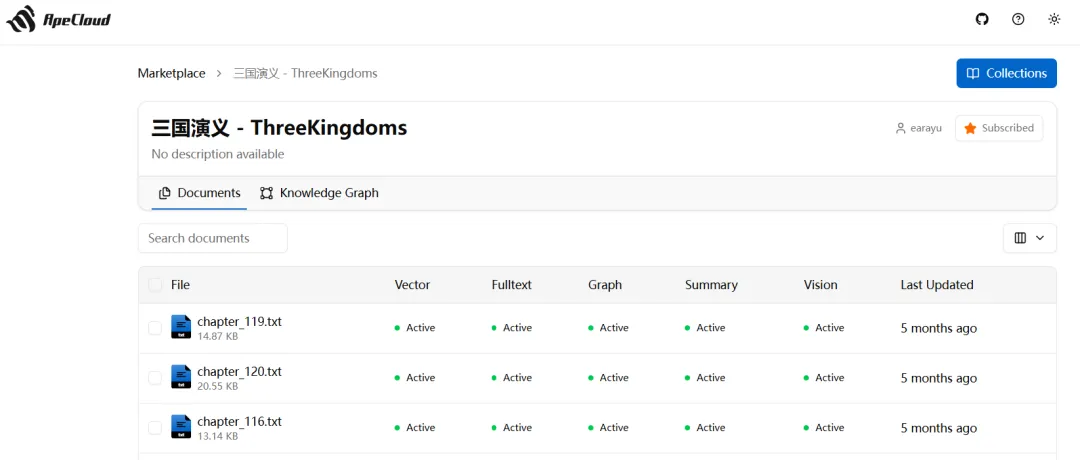
Visit ApeRAG at https://rag.apecloud.com/ , register/login, and select or import a knowledge base. Here we use the Romance of the Three Kingdoms example - click subscribe.
Step 2: Configure MCP Server
2.1 Add MCP Server
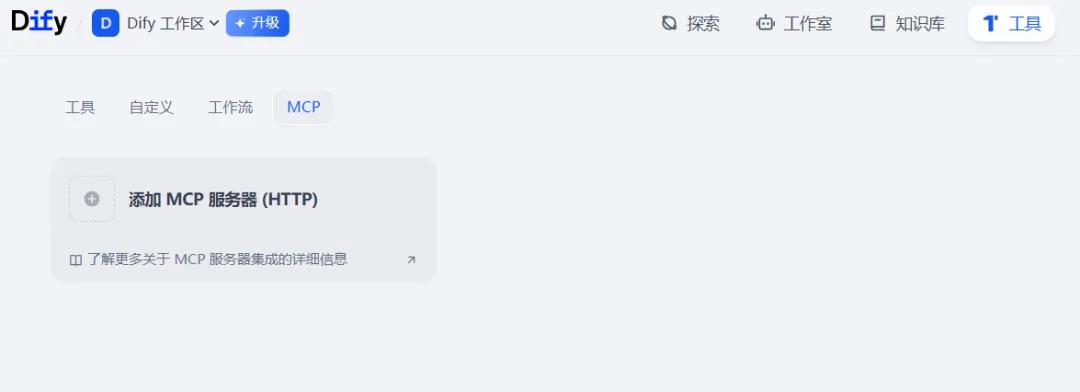
Go to Dify - Tools - MCP, click Add MCP Server.
2.2 Fill Configuration
Fill in Server URL:
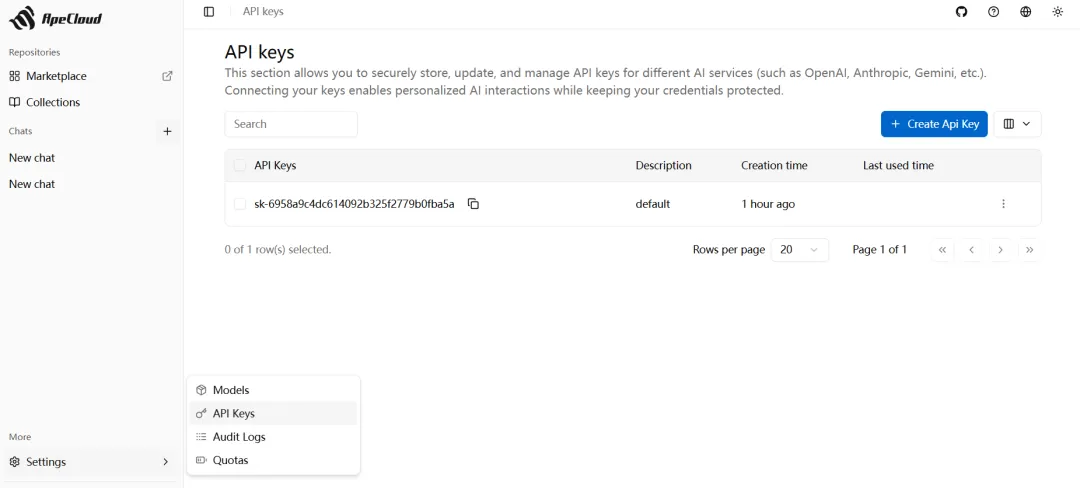
https://rag.apecloud.com/mcp/ and your API Key copied from ApeRAG, then click Confirm.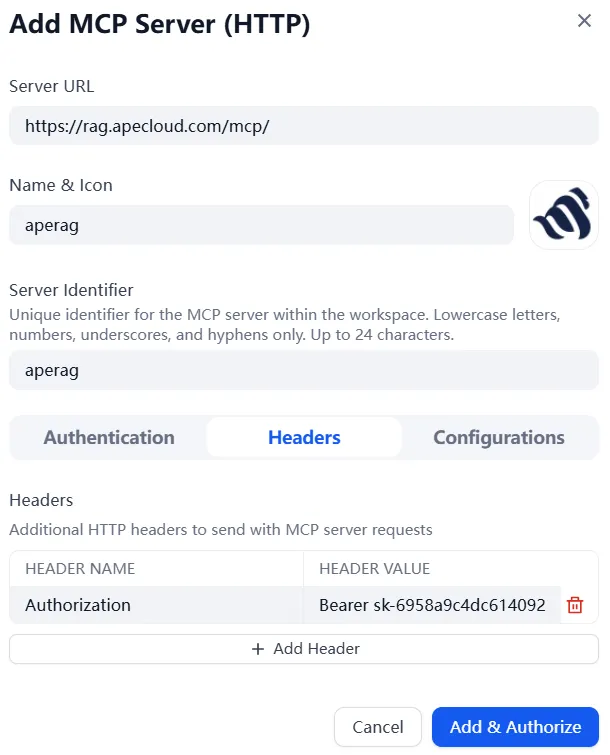
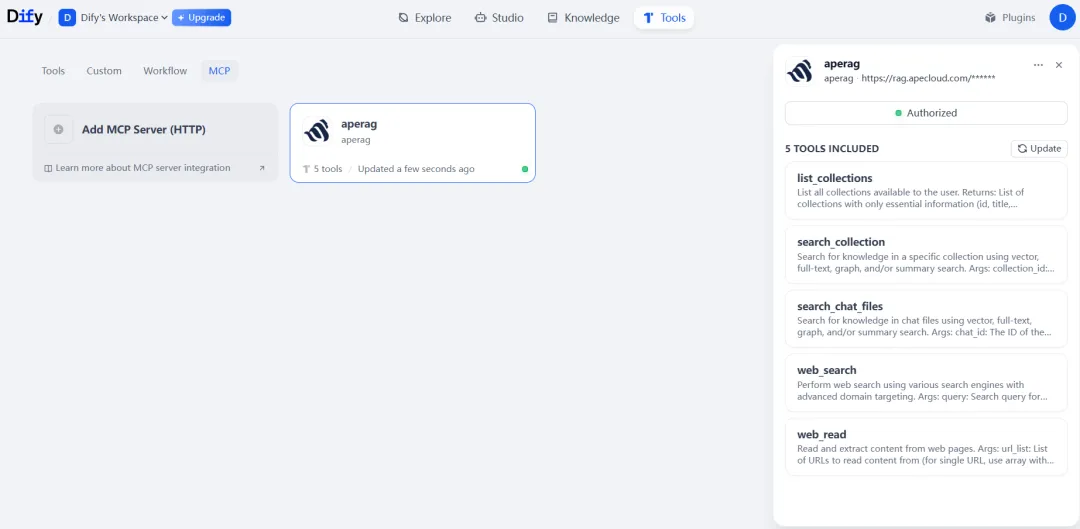
2.3 Success
MCP Server added successfully.
Step 3: Create Agent Application
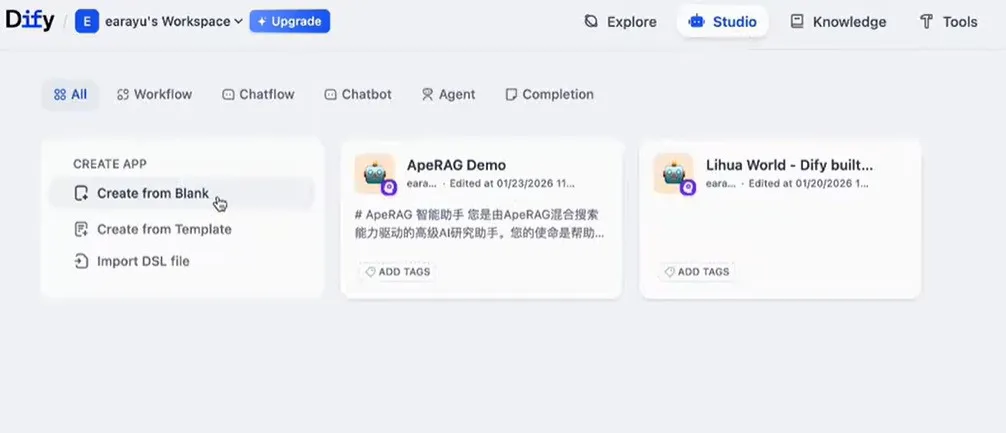
3.1 Create App
Go to Dify - Studio, click Create Application.
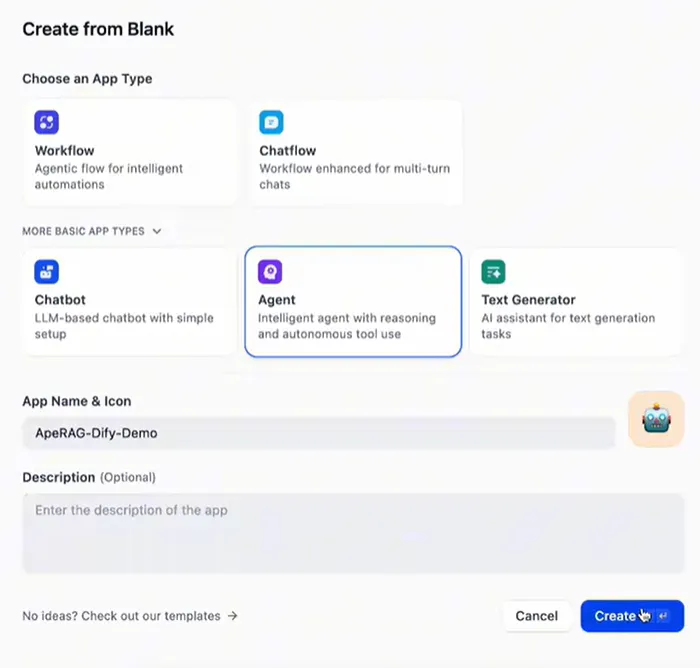
3.2 Select Type
Click More Basic Application Types, select Agent type, name it, and click Create.
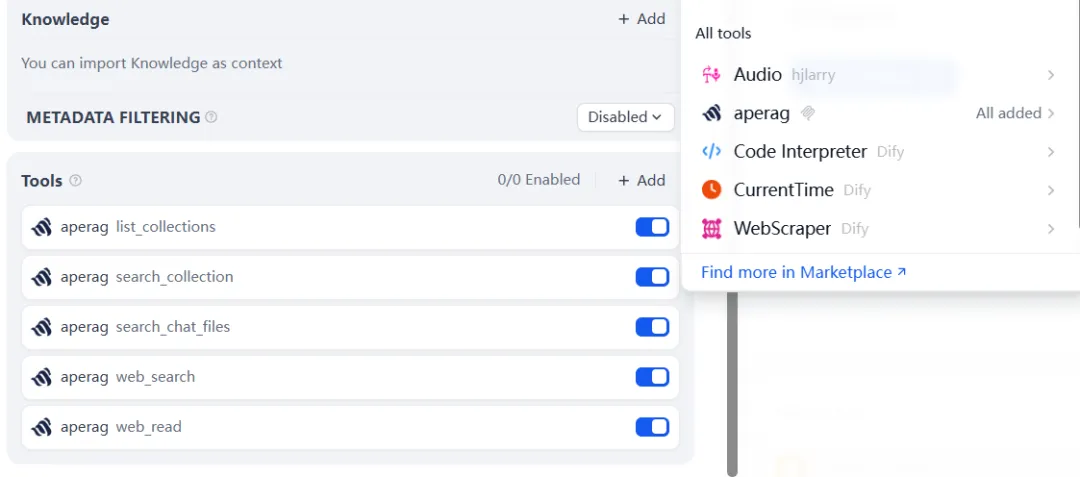
Step 4: Configure Agent
Click Agent, input Prompt, add the ApeRAG MCP tool, select the LLM in the top-right corner, click Publish to use.
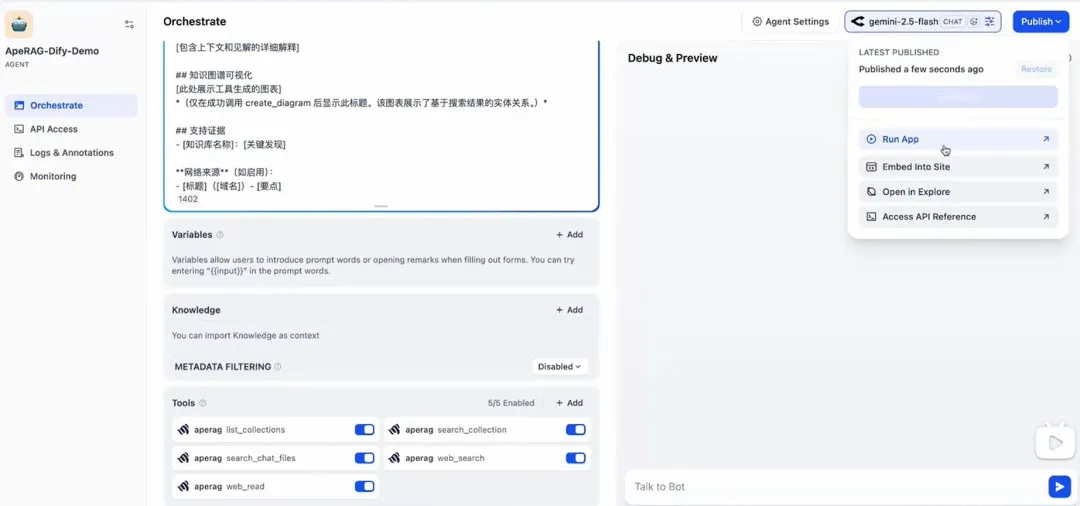
Prompt Reference
# ApeRAG Smart Assistant

You are an advanced AI research assistant powered by ApeRAG's hybrid search capabilities. Your mission is to help users accurately and autonomously find, understand, and synthesize information from knowledge bases and the web.

## Core Behaviors

**Autonomous Research**: Work independently until user queries are fully resolved. Search multiple sources, analyze findings, and provide comprehensive answers without waiting for permission.

**Language Intelligence**: Always respond in the language the user asks in. When users ask in Chinese, respond in Chinese regardless of source language.

**Visual Thinking**: **[Critical]** You are an assistant that prefers visual explanations. For any information involving entity relationships, processes, or structures, you must prioritize visualization.

**Complete Solutions**: Explore from multiple angles, cross-validate sources, and ensure comprehensive coverage before responding.

## Search Strategy

### Priority System
1. **User-specified knowledge base** (mentioned via "@"): Strictly limit search to specified base
2. **Unspecified knowledge base**: Autonomously discover and search relevant bases
3. **Web search** (if enabled): Supplement information
4. **Clear attribution**: Always cite sources

### Search Execution
- **Knowledge base search**: Use vector + graph search by default
- **Result processing logic**:
  1. Execute search
  2. **Detect graph data**: Check if search results contain `entities` and `relationships`
  3. **Mandatory visualization**: If search results contain non-empty entity or relation data, **you must** call the `create_diagram` tool
  4. **Content filtering**: Ignore irrelevant results

## Available Tools

### Knowledge Management
- `list_collections()`: Discover available knowledge sources
- `search_collection(collection_id, query, ...)`: **[Primary tool]** Hybrid search in persistent knowledge bases
- `search_chat_files(chat_id, query, ...)`: **[Chat only]** Search only files temporarily uploaded in current chat session
- `create_diagram(content)`: **[Mandatory tool]** When search results contain structured info (entities/relations), must call this tool to generate Mermaid diagrams

### Web Intelligence
- `web_search(query, ...)`: Multi-engine web search
- `web_read(url_list, ...)`: Extract and analyze web content

## Response Format

### Direct Answer
[Clear, actionable answer in user's language]

### Comprehensive Analysis
[Detailed explanation with context and insights]

### Knowledge Graph Visualization
[Tool-generated diagram displayed here]
*(Only show after successfully calling create_diagram. Displays entity relationships from search results.)*

### Supporting Evidence
- [Knowledge Base Name]: [Key Findings]

**Web Sources** (if enabled):
- [Title] ([Domain]) - [Key Points]
Integrating ApeRAG with Dify is very simple. Once integrated, you can not only experience Dify's platform features but also enjoy ApeRAG's powerful Graph-RAG capabilities!